Cloudflare Turnstile provides a privacy-friendly, invisible CAPTCHA replacement. It protects forms from spam bots without forcing visitors to solve image puzzles.
Step 1: Obtain Cloudflare Turnstile API Keys
Navigate to the Cloudflare Dashboard and sign in (or create a free account).
In the left navigation sidebar, select Turnstile.
Click the Add site button.
Configure the site details:
Site name: Enter a recognizable label (e.g., Hoi Can Thu Blog).
Domain: Enter your exact domain without https:// (e.g., hoicanthu.com).
Widget Mode: Select Managed (Recommended: Cloudflare automatically decides when to run a frictionless background check or display a simple click box).
Click Create.
Cloudflare will generate two credentials:
Site Key (Public)
Secret Key (Private)
Verification: Keep this browser tab open to copy these values in the next step.
Step 2: Install the Integration Plugin
Log into your WordPress administrative dashboard (/wp-admin).
Go to Plugins > Add Plugin.
In the search bar on the top right, type: Simple Cloudflare Turnstile.
Locate Simple Cloudflare Turnstile – CAPTCHA Alternative (developed by Elliot Sowersby).
Click Install Now, then click Activate.
Verification: Check that Cloudflare Turnstile appears under the Settings menu in the left admin sidebar.
Step 3: Connect Keys and Configure Forms
Go to Settings > Cloudflare Turnstile.
Paste the Site Key and Secret Key obtained from Step 1 into their respective fields.
Select your preferred appearance:
Theme: Auto, Light, or Dark (Auto adapts to browser settings).
Scroll to WordPress Forms and enable the forms you want to protect:
Check Comment Form (secures visitor blog comments).
Check Login Form (protects your admin login page from brute-force bot attacks).
Check Reset Password Form (prevents bot abuse of password reset emails).
Scroll down to the Advanced Settings area:
(Optional) Enable Disable for Logged-in Users if you prefer administrators not to be prompted with challenges while editing or testing.
Enable Disable Submit Button so the submission button remains disabled until the verification challenge successfully resolves.
Scroll down to the Testing & API Verification section and complete the verification widget displayed on the screen.
Click Save Changes.
Verification: The warning banner across the top of your dashboard will disappear, indicating the API handshake between WordPress and Cloudflare was verified.
Step 4: Frontend End-to-End Verification
Open a new Incognito / Private Window in your browser (ensuring you are completely logged out).
Visit an article on your website that has comments open.
Scroll down to the Leave a Reply section.
Verification: The Cloudflare Turnstile badge should appear directly above the Post Comment button.
Fill in test values for Name, Email, and Comment:
Submit with Turnstile completed: The comment should submit successfully into moderation or publish.
Submit without completing Turnstile: WordPress should block the request with a security verification error.
Recommended Maintenance Practices
Do not duplicate code: If using the plugin, avoid adding manual Turnstile hooks or custom div elements inside comments.php or functions.php.
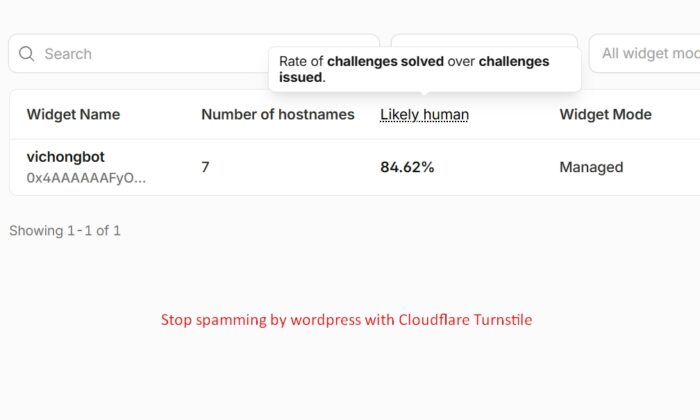
Monitor Analytics: You can view traffic metrics, challenge passes, and blocked bot requests anytime under Cloudflare Dashboard > Turnstile > Analytics.