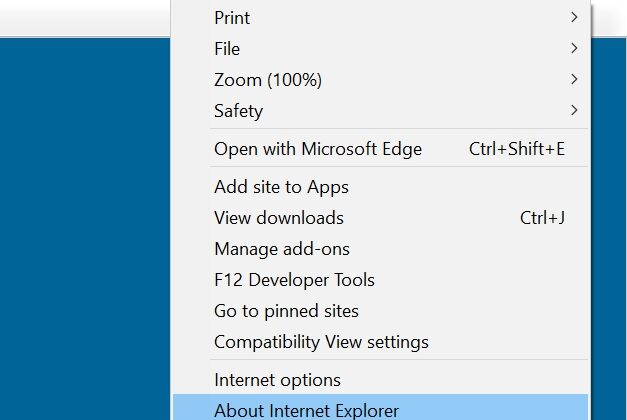
Many organizations still rely on internal websites and business applications that were originally developed for Internet Explorer. Since Internet Explorer has been retired, users often encounter compatibility issues when accessing these legacy systems on modern versions of Windows.
Fortunately, Microsoft Edge includes Internet Explorer Mode (IE Mode), allowing many older applications to continue functioning without requiring a separate Internet Explorer installation.
What Is IE Mode?
Internet Explorer Mode is a compatibility feature built into Microsoft Edge. It uses the Internet Explorer rendering engine to display websites that depend on older web technologies, including:
- ActiveX controls
- Legacy JavaScript implementations
- Enterprise web applications
- Older intranet systems
- Internet Explorer-specific components
For many organizations, IE Mode provides the easiest way to keep critical legacy applications operational on Windows 10 and Windows 11.
Enable Internet Explorer Mode in Microsoft Edge
Follow these steps to enable IE Mode:
Step 1: Open Edge Settings
Launch Microsoft Edge and enter the following address in the address bar:
edge://settings/defaultbrowserStep 2: Allow IE Mode
Locate Allow sites to be reloaded in Internet Explorer mode (IE mode) and change the setting to Allow.
Step 3: Restart Microsoft Edge
Close and reopen the browser to apply the new setting.
Step 4: Open Your Legacy Application
Navigate to the website or web application that requires Internet Explorer compatibility.
Step 5: Reload in IE Mode
Click the three-dot menu in the upper-right corner of Edge and select:
Reload in Internet Explorer mode
The page will refresh using the Internet Explorer engine.
Make a Website Always Open in IE Mode
If you use the application regularly, you can configure Edge to remember the setting:
- Open the website in IE Mode.
- Select Open this page in Internet Explorer mode next time.
- Confirm your choice.
Future visits will automatically use IE Mode.
When IE Mode Is Not Enough
Some very old applications depend on technologies that are no longer supported, even with IE Mode. Examples include:
- Legacy browser plugins
- Obsolete Java applets
- Specialized ActiveX components
- Applications tightly coupled with Internet Explorer 8 or earlier
In these situations, consider running the application inside a virtual machine with Windows 7 or Windows 10 and Internet Explorer 11 installed.
Final Thoughts
Although Internet Explorer is no longer supported, Microsoft Edge’s IE Mode provides an effective bridge for organizations that still depend on legacy web applications. In most cases, enabling IE Mode is the quickest and safest way to keep older systems accessible while planning a future migration to modern web technologies.
If your application still fails after enabling IE Mode, consult your software vendor or IT administrator to determine whether additional compatibility settings or a virtual machine environment are required.